Productivity Stack 6: Everyday Helpers

The final instalment of my 2025 Productivity Stack series. I know, you’re absolutely crestfallen 😔, but I’ve saved the best till last 😉
This section covers the miscellaneous apps that don't belong in the main categories from the previous lists, but are just as essential to my setup. They're the kind of tools that once you start using them, you wonder how you ever managed without them.
Onigiri (countdown)
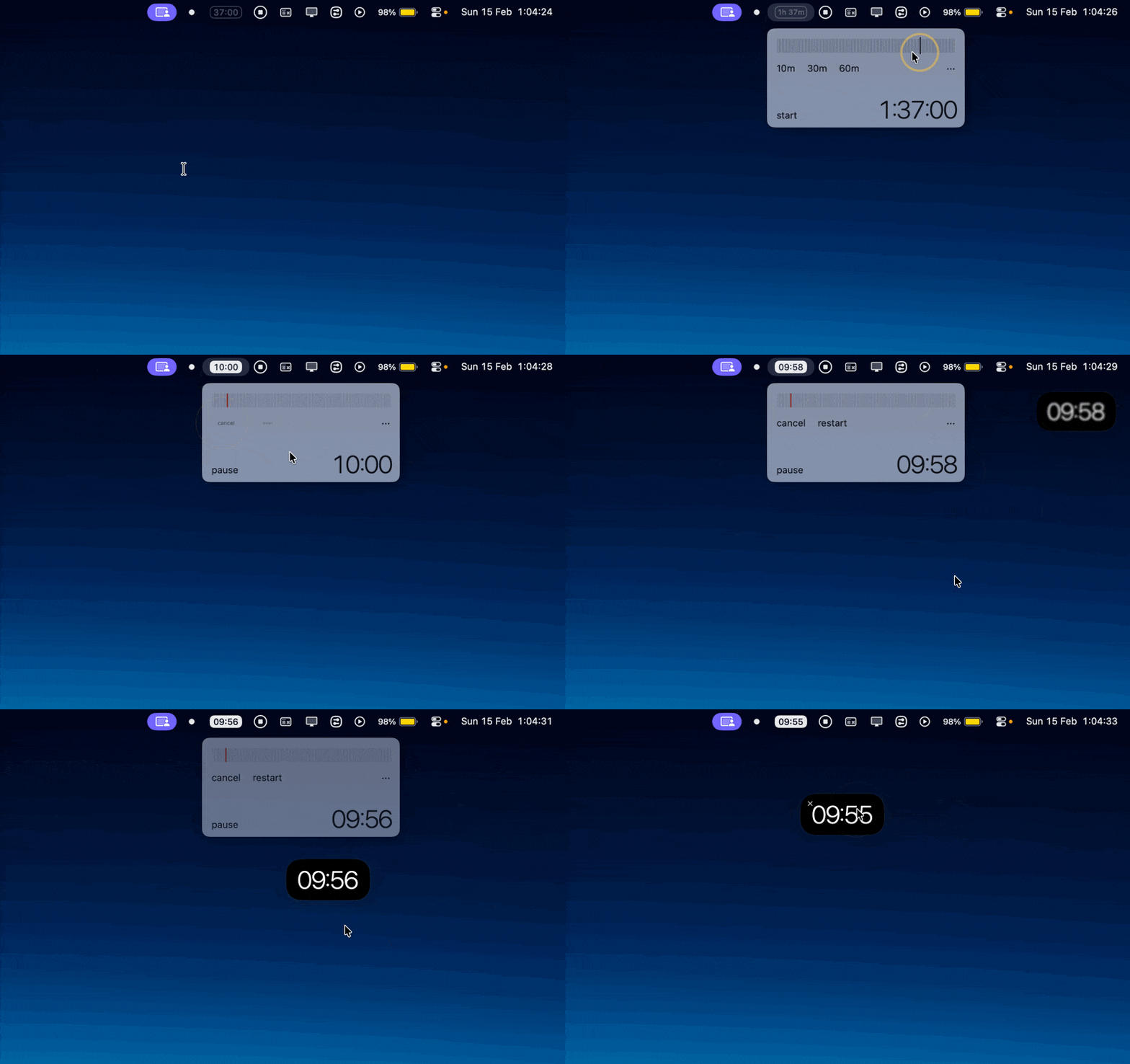
A simple countdown app that floats across all my windows and can be dragged anywhere.
I often become time-blind or want to keep a task within a specific time frame. It's especially powerful when paired with the Blitzit app or any calendar blocking activity.
It's a super basic app, but it works really well - and it's free!
Time blocking in my calendar is all well and good, but this actually keeps me on it.
One Switch (menu bar quick actions)
Cost: $4.99
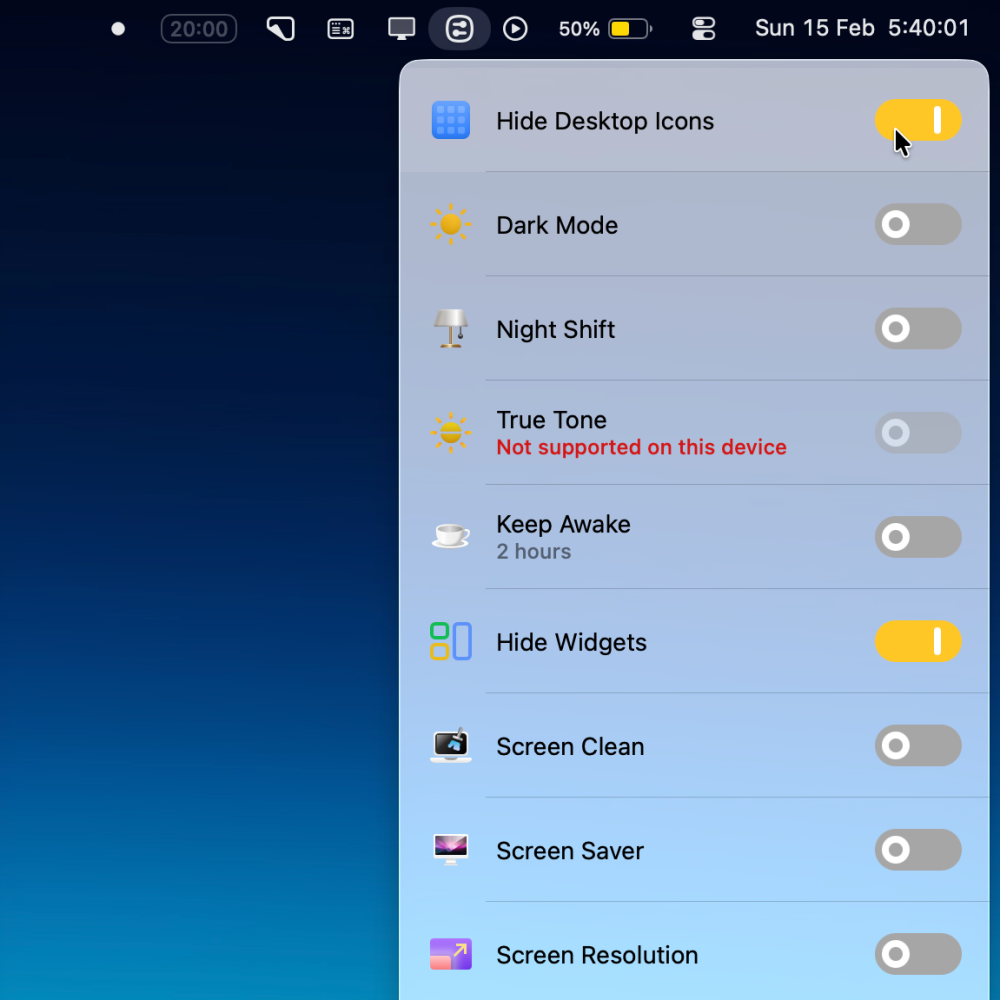
I stumbled upon this one while trying to solve a very specific problem: how to clean my laptop screen without accidentally triggering keys. After testing it on Setapp, I was sold and bought the lifetime version.
Now I use it constantly - not just for keyboard locking, but for hiding desktop icons when I need a clean workspace, keeping my screen awake during presentations, and switching between dark and light mode with a single click. It saves me countless trips digging through system menus for features I use multiple times a day.


PastePal (clipboard manager)
Cost: $14.99
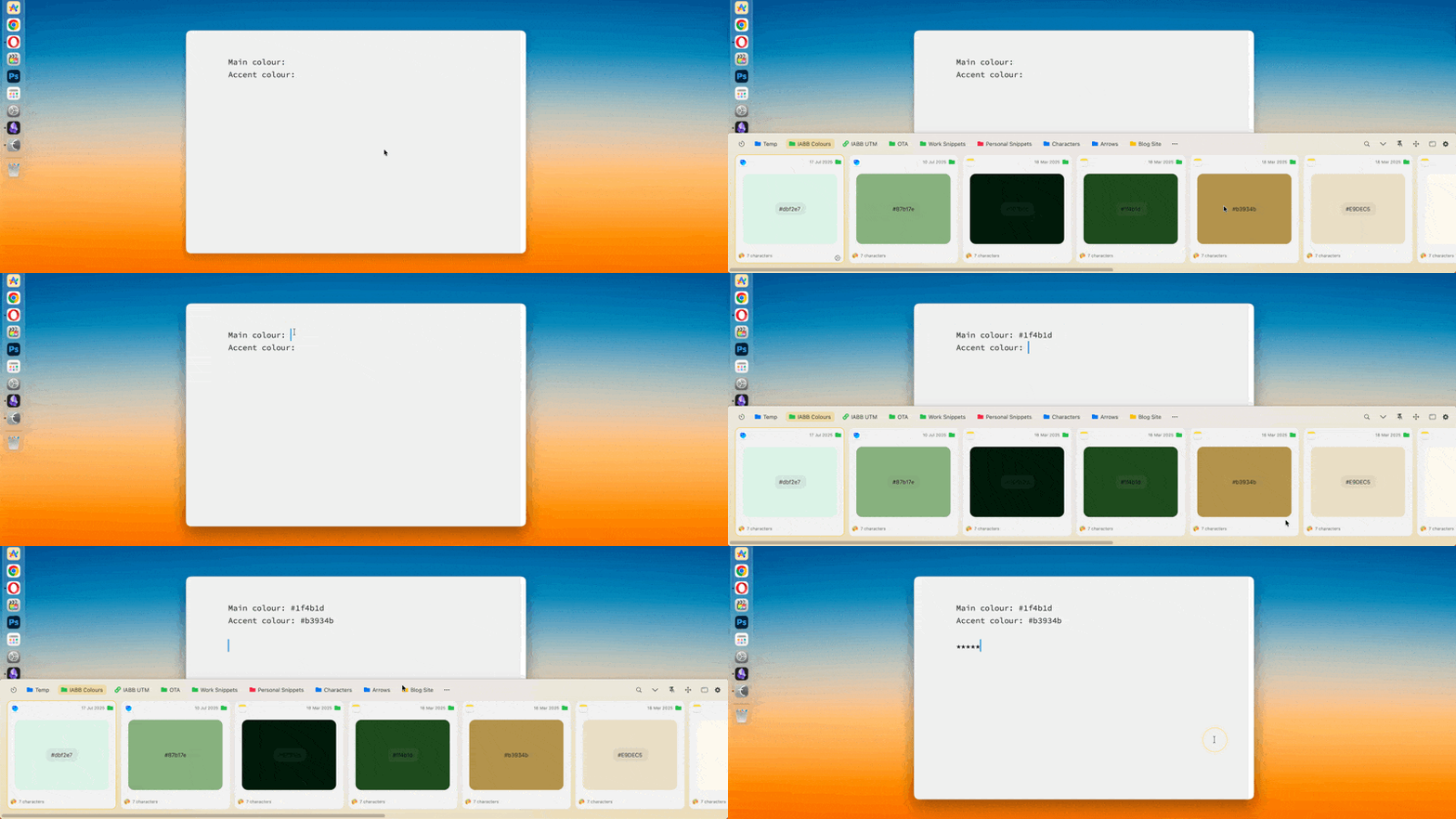
This is an advanced clipboard manager that lets you access everything you've copied within a time frame you set, not just your most recent single item.
Clipboard managers aren't new, but I came across ones that display information in a really satisfying way. Hex codes for colours, preview thumbnails for links, you name it!
The things I love most:
- Quick view & the many options: with a simple command the window appears on my screen which can be left, right, top, and bottom.
- Previews: makes it easier to process the information and spot what you need.
- Collections: great for specific projects
- Double-click to paste
I originally started with Paste, which I used on Setapp. But when I moved away from the subscription service, I found PastePal offered better value at $14.99 compared to Paste's $89.99 lifetime price. Yes, Paste looks slightly better designed, but after using PastePal for six months, I haven't had a single issue.
This is definitely one of those apps that makes you wonder how you ever lived without it.

Sip (colour palette manager)
Cost: £22.46
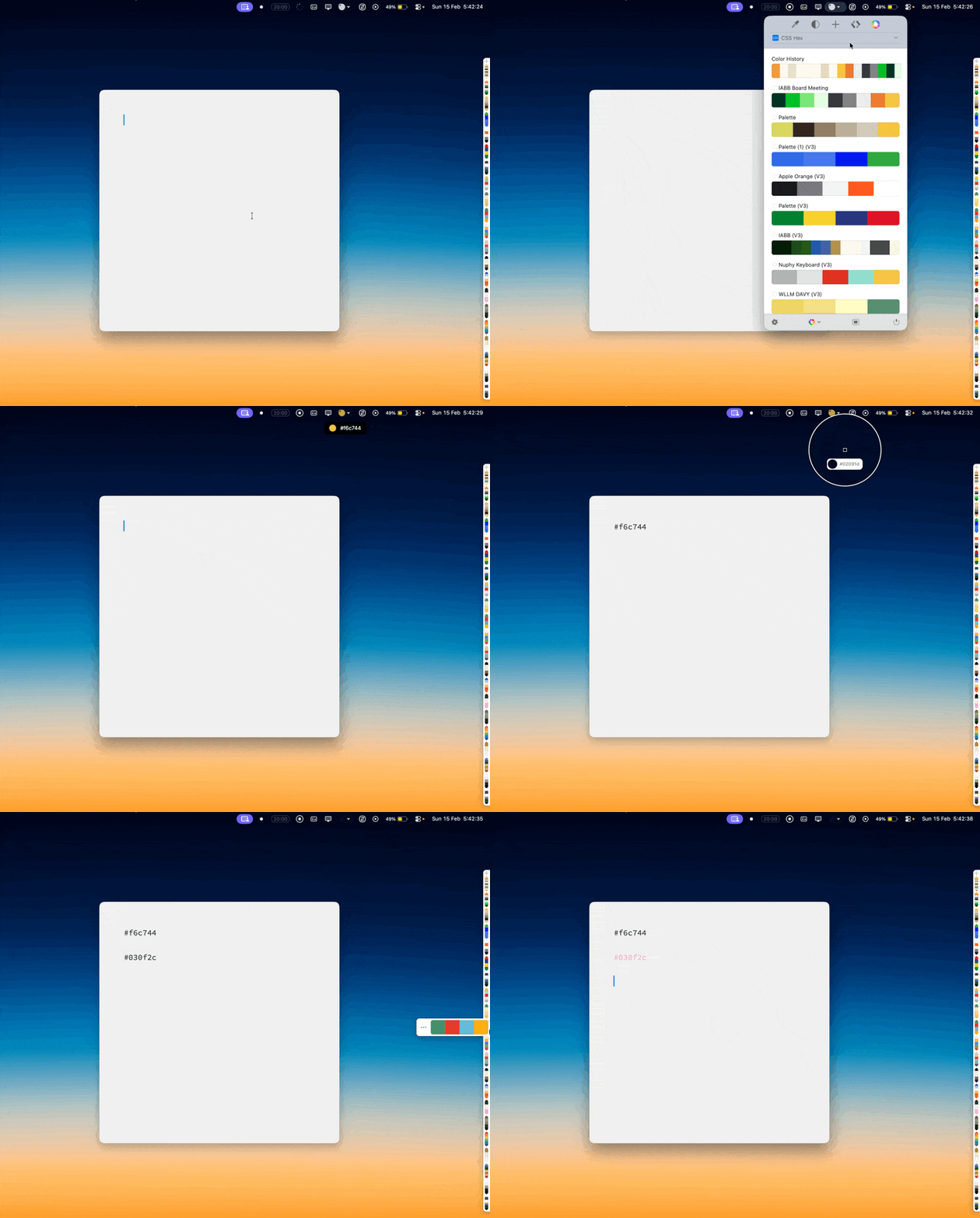
This is more niche as I work with colour palettes for clients or personal projects. The eye dropper function allows me to save any colour, anywhere on my screen, which I can then organise into collections and export as PDFs with hex codes. Simple, but incredibly handy when you need it.
 Olá Brothers, sipsipapp.io
Raindrop (bookmark manager)
Free with premium options.
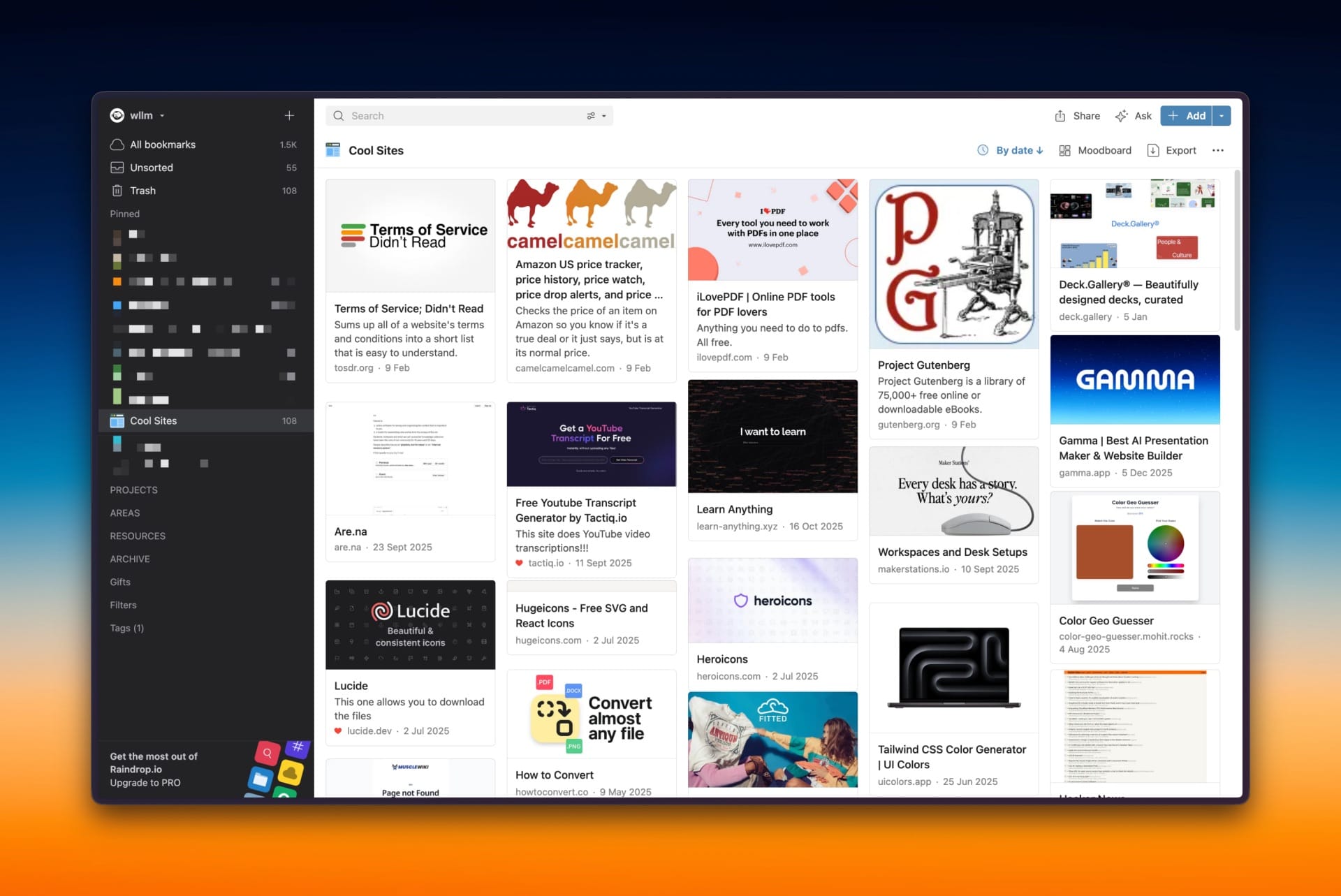
This app saved me from a problem many can relate to: online shopping. But this app is also so much more than that.
It’s an advanced bookmark manager, but again, the way it displays the information is incredibly versatile and also the way it groups the information in different collections and folders.
More on how it’s helped me with online shopping, though. I simply find something I like, and share the link to this app and forget about it. It's like digitally shoving something in a drawer - out of sight, out of mind. I only come back to it when I remember it, or when I'm looking for gift ideas/inspiration.
What’s more is that you can kinda make it look like Pinterest, or you could make it look like a boring list with no images to make it way less appealing.
Common use cases:
- You can use it to save articles (which is probably one of the most common use cases, although I don’t really use it this way)
- Gift ideas
- Saving books you’d like to read
- Links to furniture for a new home
- Your favourite YouTube videos
- Collection of all kinds for an inspiration board for an upcoming project
It's collaborative, so you can share it with loved ones. It integrates across all devices and browsers, making it incredibly easy to use. Annnnnd it's free!
Freeform (whiteboard)
Free with Apple devices.
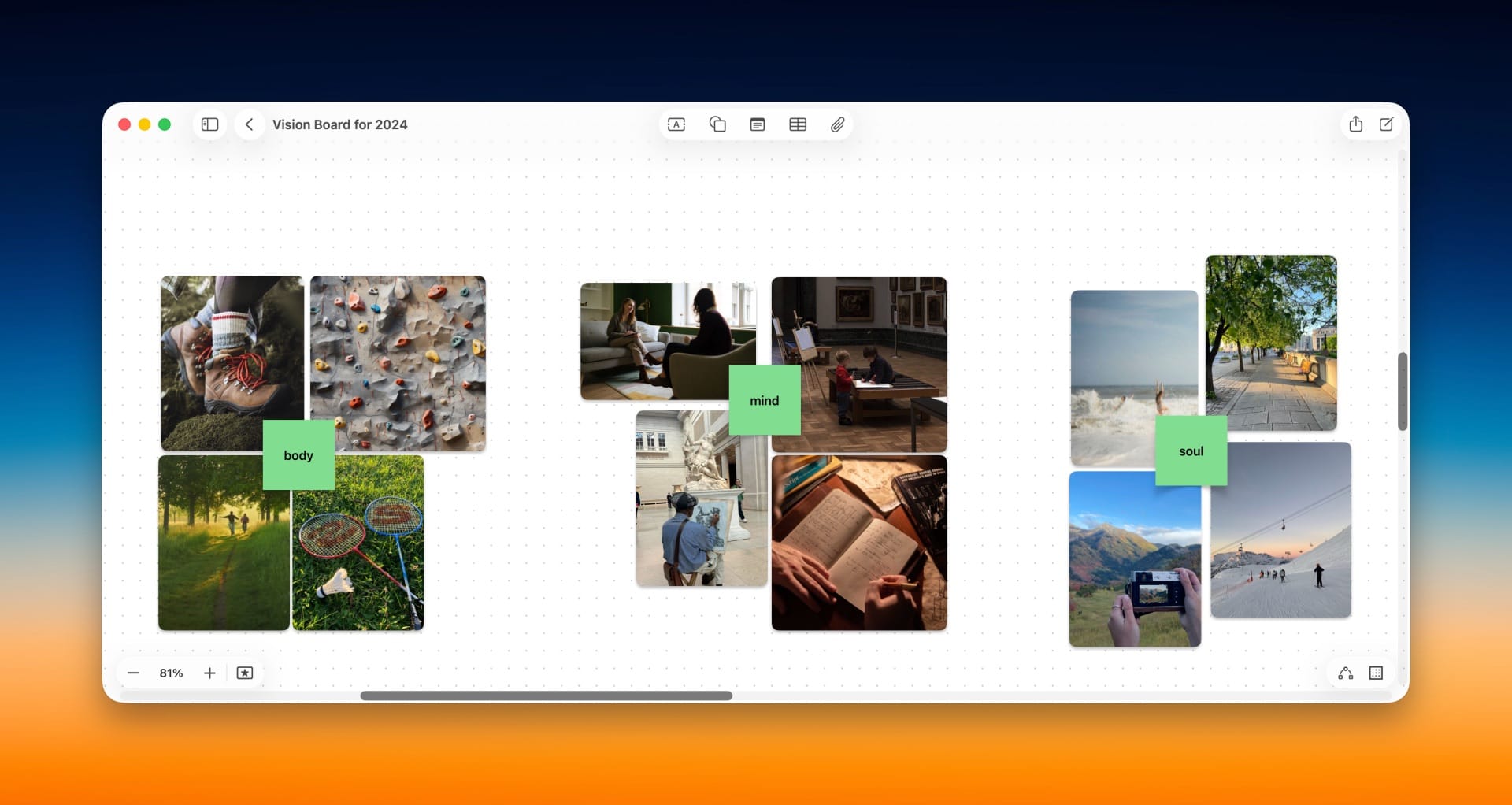
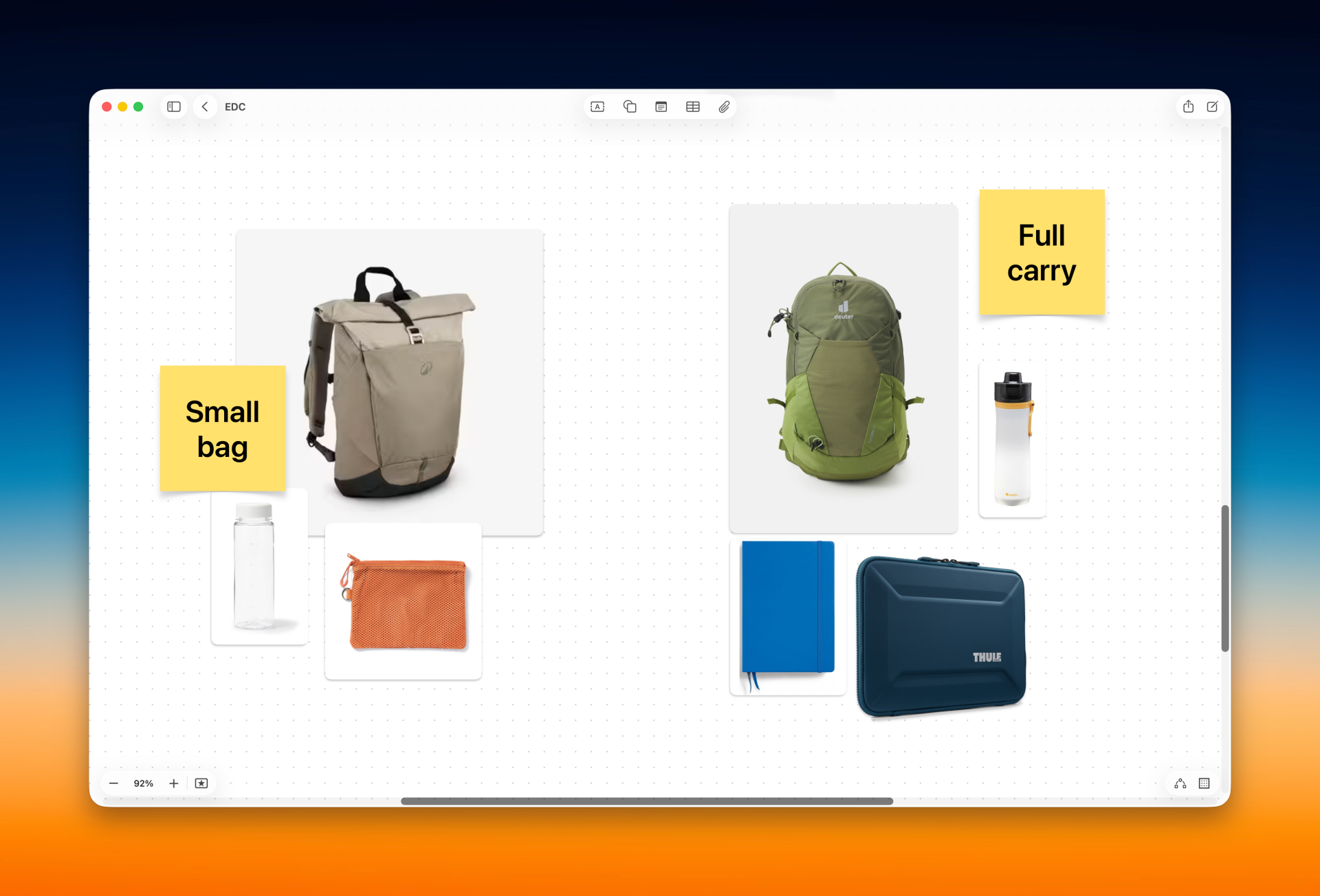
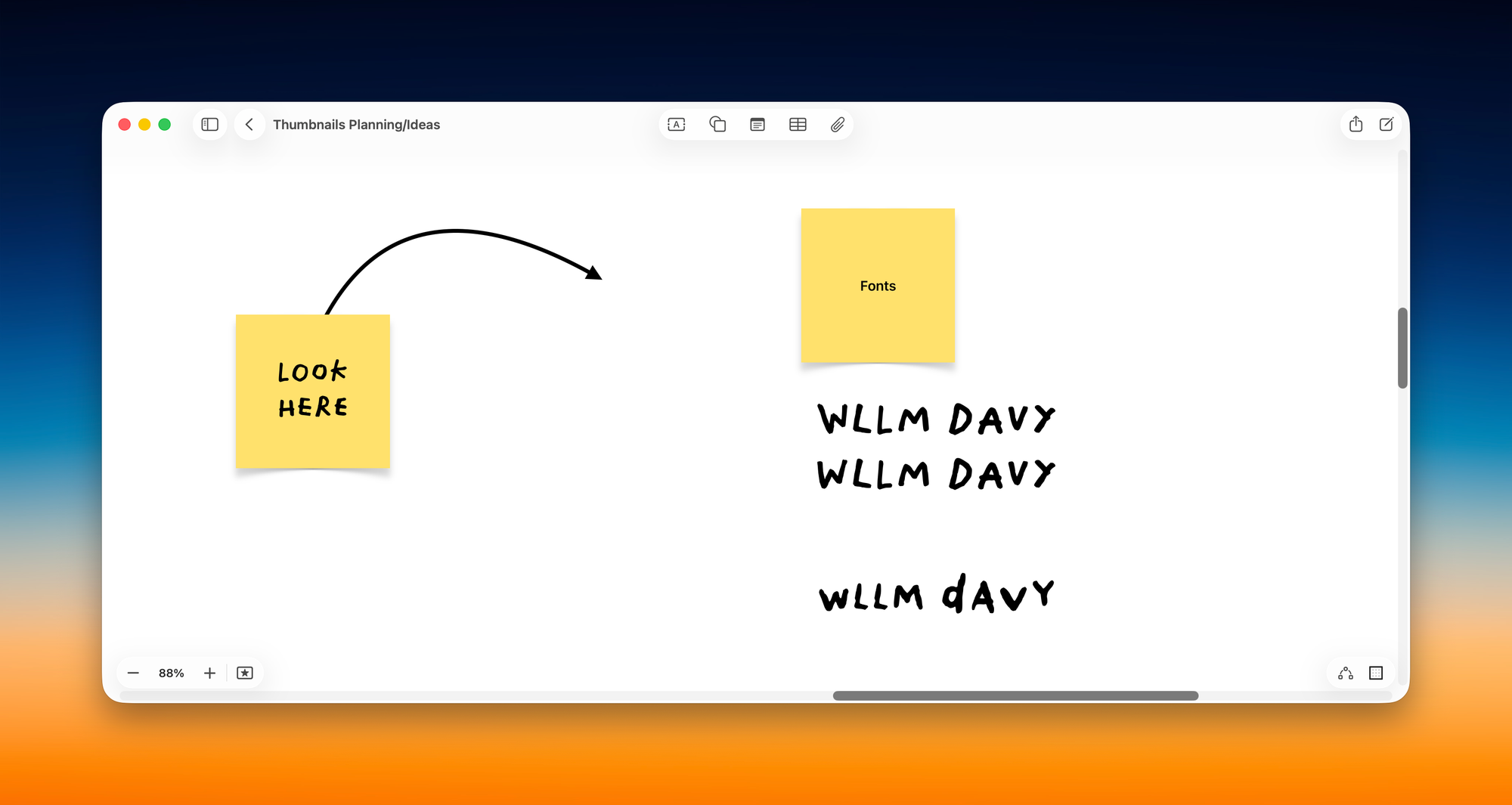
Examples of use cases. L-R: vision board, visual planning, branding/font planning
This one is Apple native and free if you own an Apple device.
Simply not enough people know about it, which is SAD, because it’s so powerful. Don’t get me wrong, it’s really basic, but that’s what makes it so powerful. It works incredibly well for dumping your ideas onto a page in a completely unstructured, non-linear way. Which is why it’s so important to have a feature-minimal app to save you from the distraction overlords.
To begin with, I hated how basic it was, but it’s truly a lifesaver. Especially for those projects where your brain just can’t wrap around a document, a list, or even paper.
I’ve used this for so many things. Here are some examples:
- Planning social media campaigns
- Christmas shopping
- External hard drive backup system
- Vision boards
- Wheels of Life
- Venn diagrams
- Organisational chart
- Brand planning/inspiration
- Marking up screenshots
- Website wireframes
- Client presentation on a video call
- Decision making
Outro
These apps don't fit neatly into categories like "productivity" or "creativity" because they transcend those boundaries. These are the tools that fill the gaps in your workflow, the ones that solve those little frustrations you didn't even realise you had until they were gone. Sometimes the best productivity tools aren't the ones that promise to revolutionise your entire system (cough Motion) - they're the quiet ones that just make your day a little bit easier.
The beauty of apps like these is that they adapt to your needs rather than forcing you to adapt to them.
And there we have it! The series is complete! You've made it through all six instalments of my 2025 Productivity Stack, and I genuinely hope you've discovered at least one tool that might make your daily workflow a little smoother.
In all seriousness, though, if you read all or even some of these articles, I am incredibly grateful to you for dedicating your time to my words. Building a productivity system is deeply personal - what works brilliantly for me might not suit you at all, and that's completely fine. The goal was never to prescribe a perfect setup, but rather to share what's helped me and perhaps inspire you to refine your own toolkit.
Remember: the best productivity system is the one you'll actually use. Start small, experiment freely, and don't be afraid to abandon tools that aren't serving you anymore.
Thanks for reading along,
Will