Productivity Stack 5: Browsers

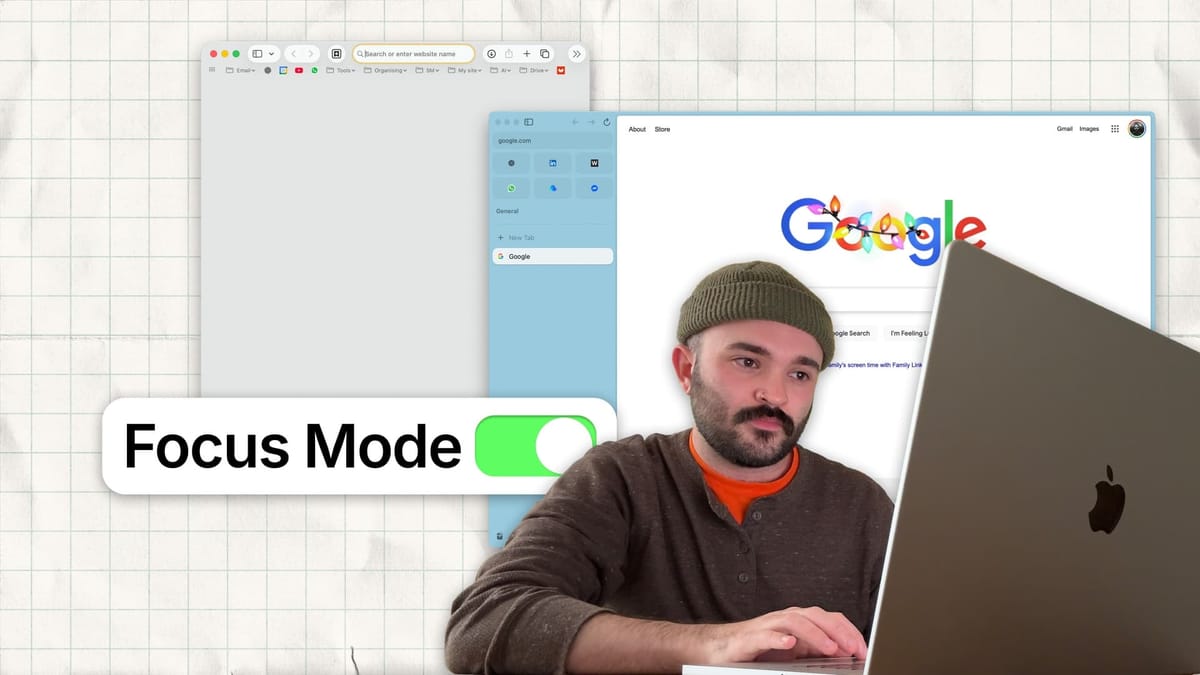
Round five of the productivity stack is about browsers (I know, thrilling!)
I always find online discussions about browsers rather heated; it's like people pick one and stick with it for life, staunchly defending their choice. Unless you're like me, flip-flopping without a care.
For years, the options weren't particularly different beyond their look and feel. But in recent years, there has been an influx of innovative browsers. Many now centre around AI, which I've found rather boring, disappointing, or overwhelming in my testing. One of the first to break the mould was, though, was Arc.
Arc
This came out in 2023 | available on Mac & Windows
It's since been dropped in development in favour of an AI version 😔, so they're not developing it any further. What I really loved was the sidebar and spaces they brought in. For ultimate immersion, you can remove the sidebar and visit websites in full-screen mode, which is really great for focus.
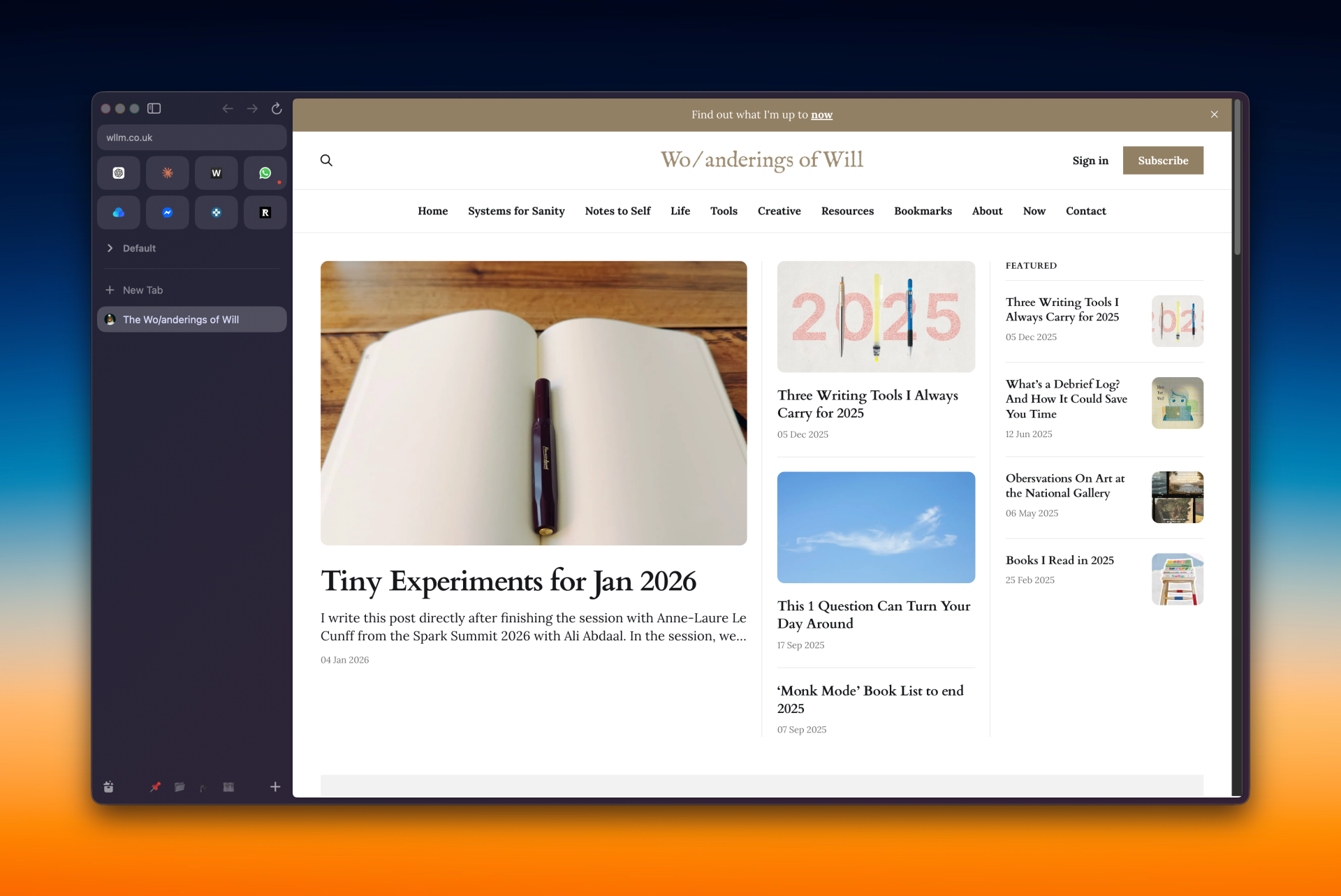
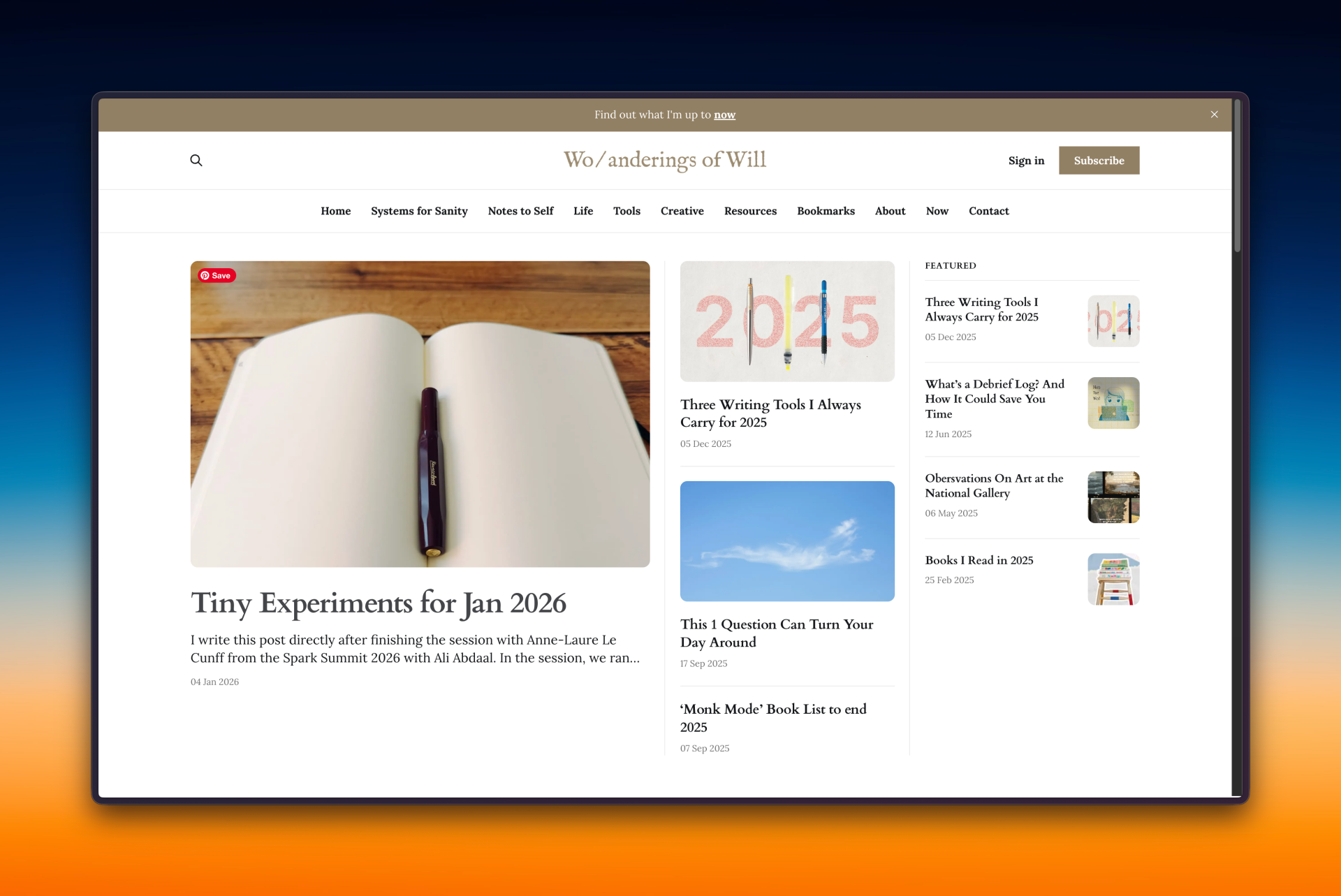
Sidebar comparison of fullscreen mode (cmd+s)
This works well when I need many tabs open for ultimate productivity. You can create workspaces, pin specific tabs within that workspace, and have apps pinned across workspaces. I used this all the time until I realised I kept everything open and never got rid of tabs. In my process of making things more minimal, I moved over to Safari.

Safari
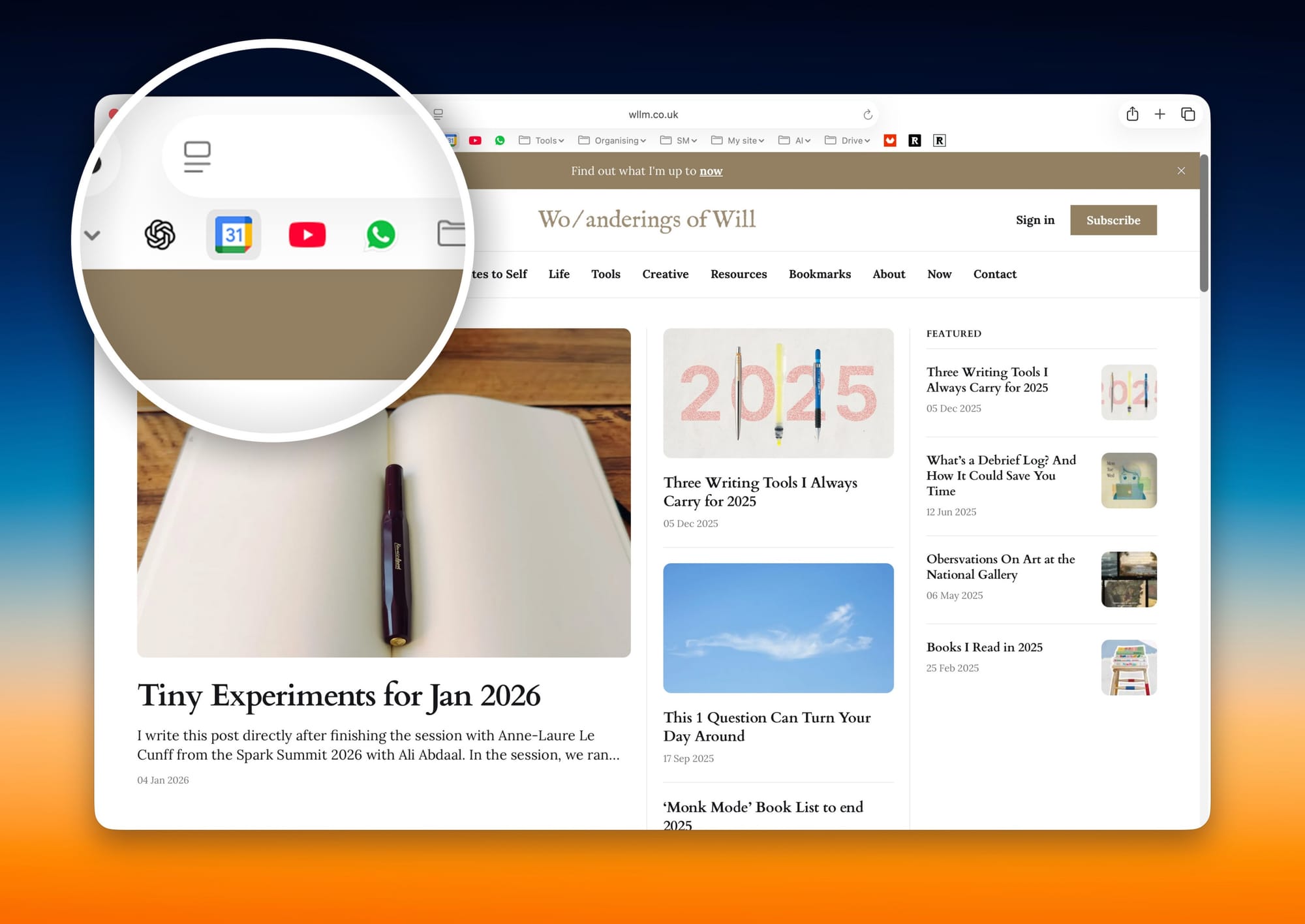
Safari is now my daily driver. I use it because it's clean and minimal—I've removed the background image and widgets. But the main reason is simpler: I can't stand the look of multiple tabs open in a row. After every session, I close all my tabs, which motivates me to finish tasks and move on.
Unlike Arc, which encourages keeping tabs permanently open in the pinned section, Safari keeps things simple. Arc is brilliant for research projects but awful to maintain for daily use. Safari just looks ugly when you have more than four tabs open, so I always keep it minimal.
Chrome (for work)
Reliable and integrates well with all my work tools. A predictable choice, though.
So I thought I'd list the Chrome extensions I use to keep it interesting:
- Grammarly: of course, I need a spell checker everywhere I can get one!
- Raindrop: saving links quickly (more about this app later on)
- Save to Pinterest: recent addition and I’m made I didn’t know about it sooner
- Fonts Ninja: I often see fonts on websites that I like, mostly used when I’m actually building websites for people and browsing templates.
- DeepL: for translating WhatsApp messages really quickly
- Toucan: turns random words as I’m browsing into a language of my choice. Great way of learning new words in context, and passively while doing something else
Final thoughts
So there you have it - my browser setup across different contexts. Each has its place, and I've found that switching between them based on what I'm doing helps me stay productive without falling into the trap of endless open tabs.
The key takeaway? Your browser choice matters less than how you use it. Find what works for your workflow, experiment with different approaches, and don't be afraid to switch things up when your needs change. Sometimes the best productivity tool is simply the one that gets out of your way.
And with that, we've covered the core apps, and now we move into the realm of everyday helpers. The random apps that might seem niche at first, but become absolutely indispensable once you start using them (and make daily tasks just a bit more delightful).
Go to Stack 6 → Productivity Stack 6: Everyday Helpers
See you in the next (and final) stack 😢
Will