Productivity Stack 3: Calendar Apps


At the core, the calendar itself stays the same. What changes is how you interact with it.
My main calendar is actually Google Calendar, but I don’t really use it directly. Instead, I’ve essentially re-skinned it by connecting it to other apps.
That might sound fancy, but it’s very common and surprisingly easy to do.
The complete opposite of this is when people get bogged down trying to sync multiple calendars across different platforms, accounts, teams, and people, which can quickly turn into a complex mega mess. That does happen, but in my experience, it’s far rarer, probably the top 10% of edge cases where things have genuinely grown out of control.
One thing a lot of people don’t realise is that you can connect the same calendar account to multiple apps at once. At one point, I had my calendar connected to five different calendar apps. Completely unnecessary, by the way, but it taught me a lot about what I actually value in a calendar interface. It also made me much more comfortable switching between calendar apps depending on my current mode, season of life, or how I need to work at that moment.
At the core, the calendar itself stays the same. What changes is how you interact with it.
BusyCal (everything)
Right now, I use BusyCal as my main calendar app.
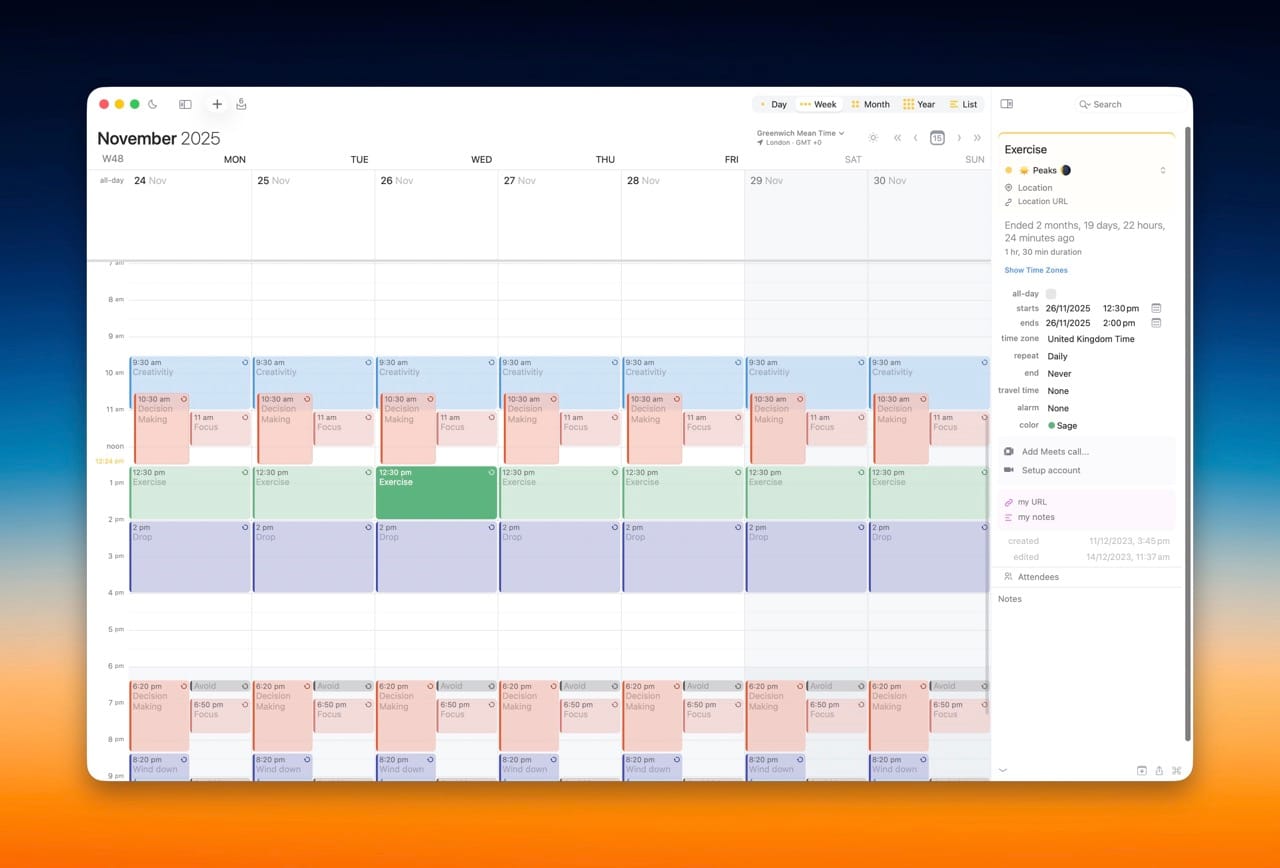
It’s not the prettiest thing in the world. In places it looks a bit clunky and slightly outdated. But it is incredibly feature-rich, it has a proper quick entry feature, and most importantly, it allows two-way sync with my work calendar.
That last part is the dealbreaker.
There are lots of calendars I like more visually, but very few that handle syncing in a way that actually works for my setup.
Things I particularly like about BusyCal:
- Built-in travel time (why this isn’t standard everywhere is beyond me)
- Event countdowns
- A menu bar calendar that’s always visible
- Proper notification pop-ups across your screen
- A genuinely useful month view on mobile
- Weather animations in the week view
- Integration with reminders
None of these features are revolutionary on their own, but together they make it very easy to live inside the calendar without friction.
BusyCal costs around $49.99 for a lifetime Mac licence and $9.99 on iOS (at the time of publication). For me, it’s worth it purely for the combination of features and syncing reliability.
- Other calendar apps I’ve tried so far:
- Apple Calendar I’m not even sure this should count, because I generally avoid it at all costs. That said, it does have some genuinely great widgets, and the Apple Watch integration is solid.
- Fantastical A popular option among tech enthusiasts. I mostly remember it for one widget I found useful on iPhone, which definitely says more about me than the app. I don’t use it anymore as other apps have caught up on their widget game.
- Notion Calendar More on this below, but I initially liked it a lot. I just couldn’t make it work long-term for my setup.
 Beehive Innovations
Google Calendar
There’s absolutely nothing wrong with Google Calendar.
It’s not particularly feature-rich, but that’s also its strength. It stays clean, simple, and distraction-free, which makes it a great place to focus.
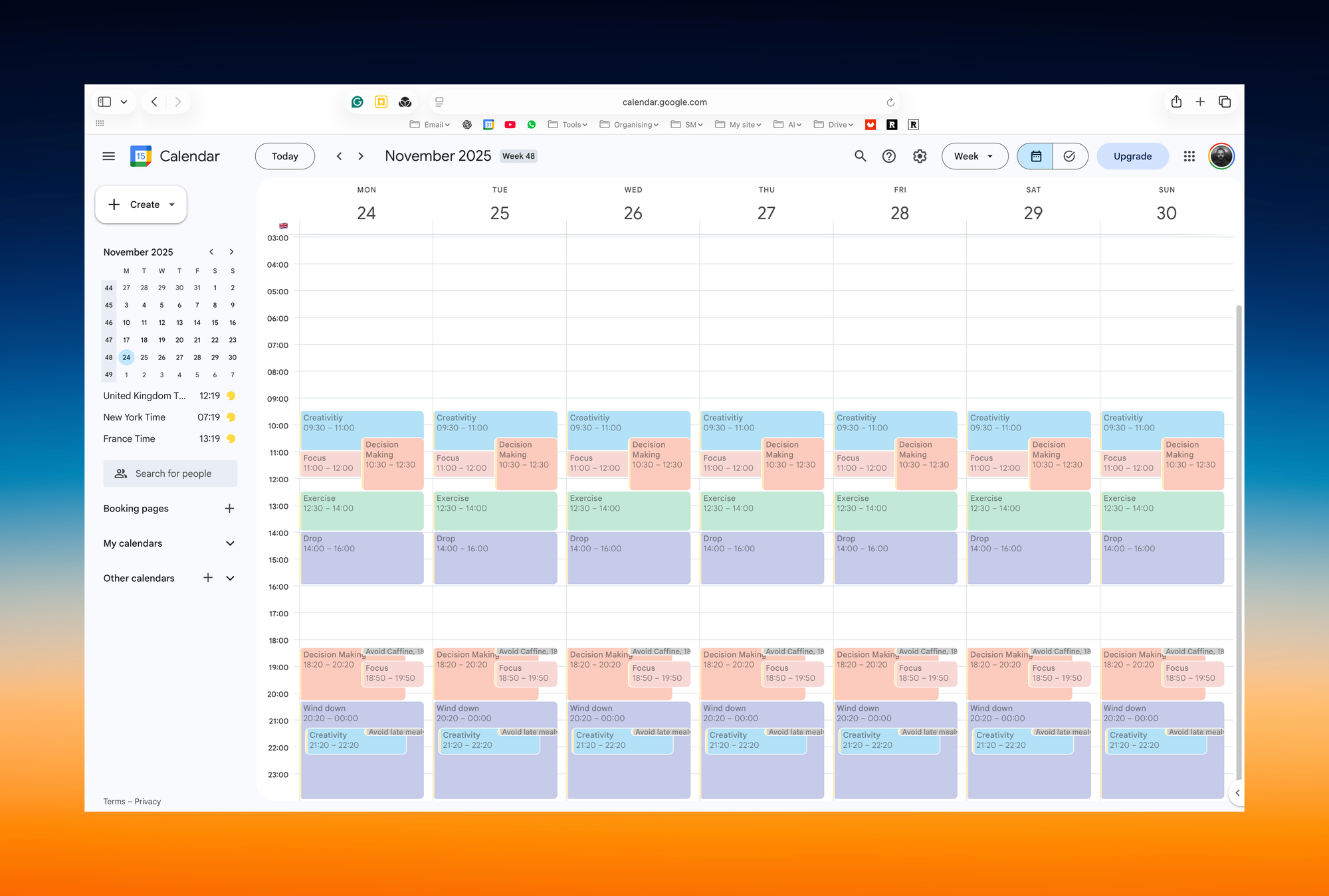
If Google offered two-way sync with my work calendar, I’d probably still be using it directly. The lack of that feature is the only reason I landed on BusyCal.
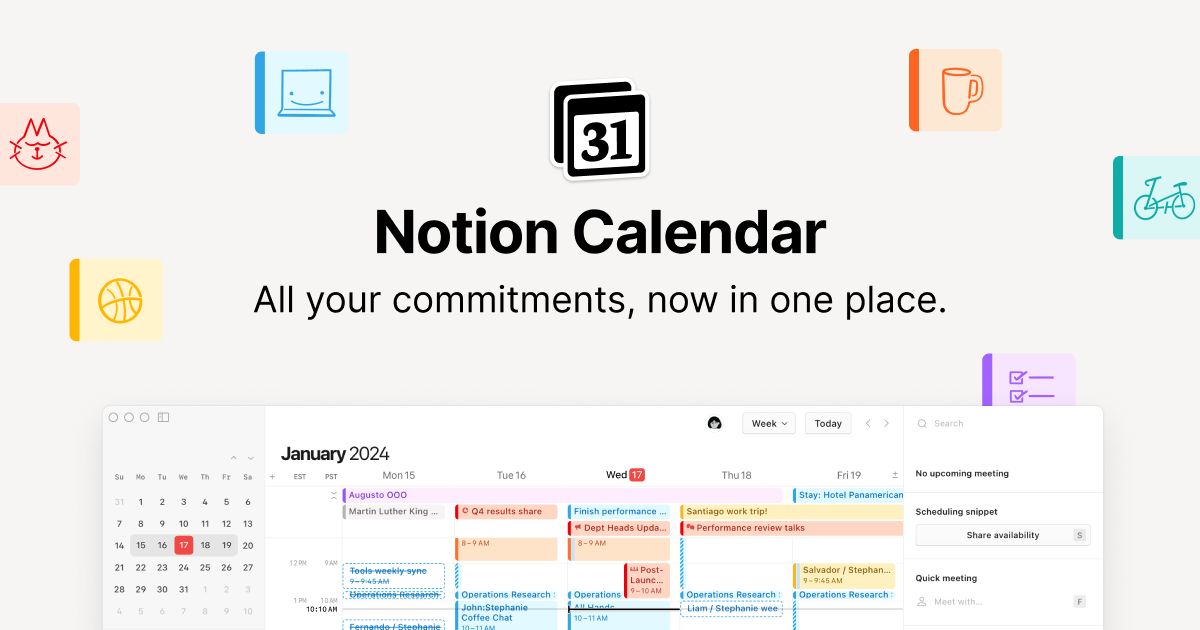
Notion Calendar
I used Notion Calendar back when it was called Cron, before it was acquired by Notion (I miss the old name, ‘Notion Calendar’ isn’t particularly the most creative 🤣)
This calendar works beautifully alongside Notion, for obvious reasons. The commands feel familiar, and you can integrate events directly with your pages and workflows.
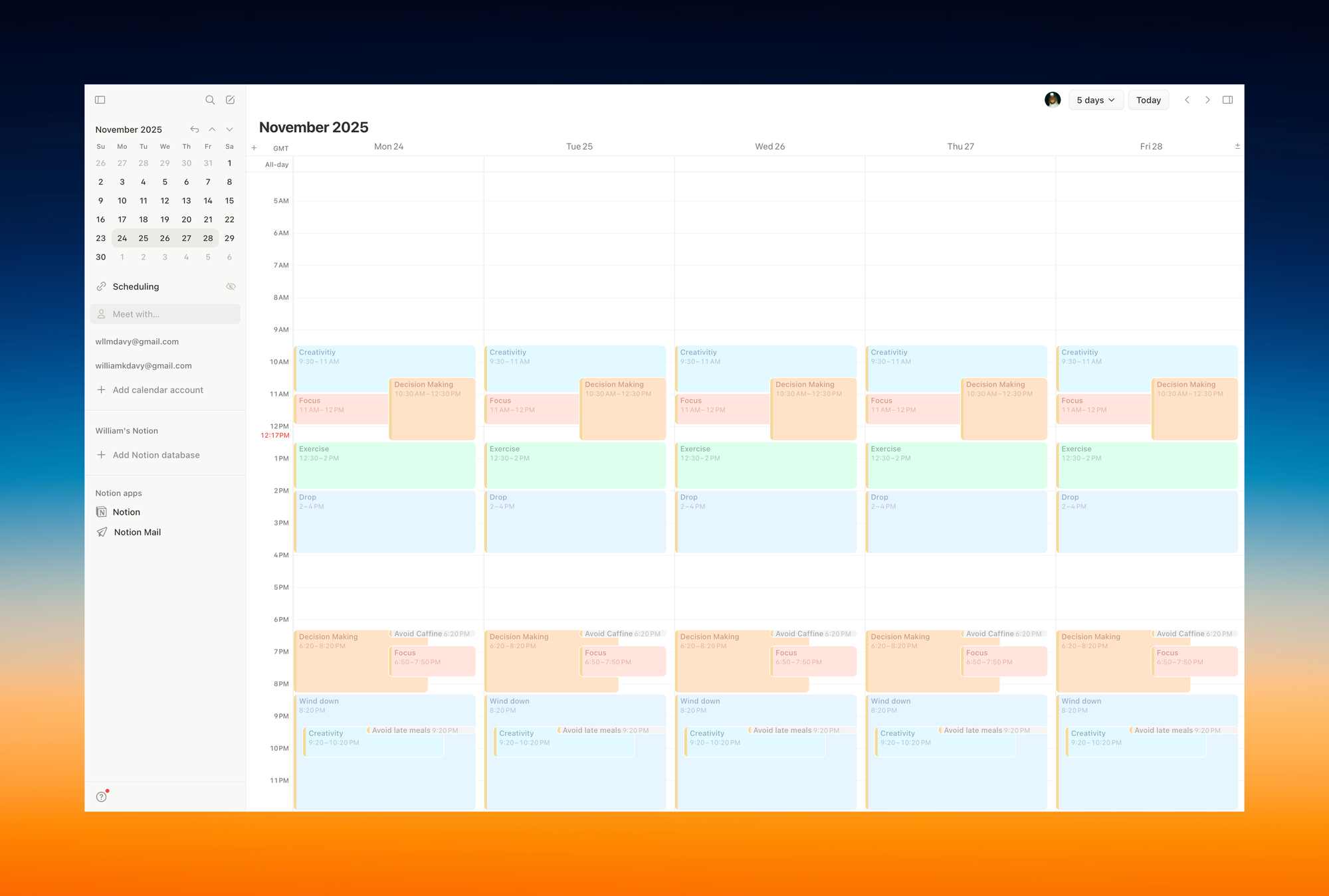
I genuinely love this calendar, and I keep wanting to come back to it. The main thing holding me back is, again, two-way syncing with my work calendar. It’s just not strong enough for what I need.
One smaller thing that annoys me more than it probably should is the colour palette. The colours feel weak and under-saturated, and that surprisingly makes a big difference to how readable and usable the calendar feels day to day.
That said, this is a fantastic calendar to have open alongside another app. Something like a to-do list or task manager. Writing this has actually made me want to experiment with that setup again 👀
There’s just something about it’s simplicity…

Zoho Calendar (for work)
This one’s simple. It does the job. 🤷
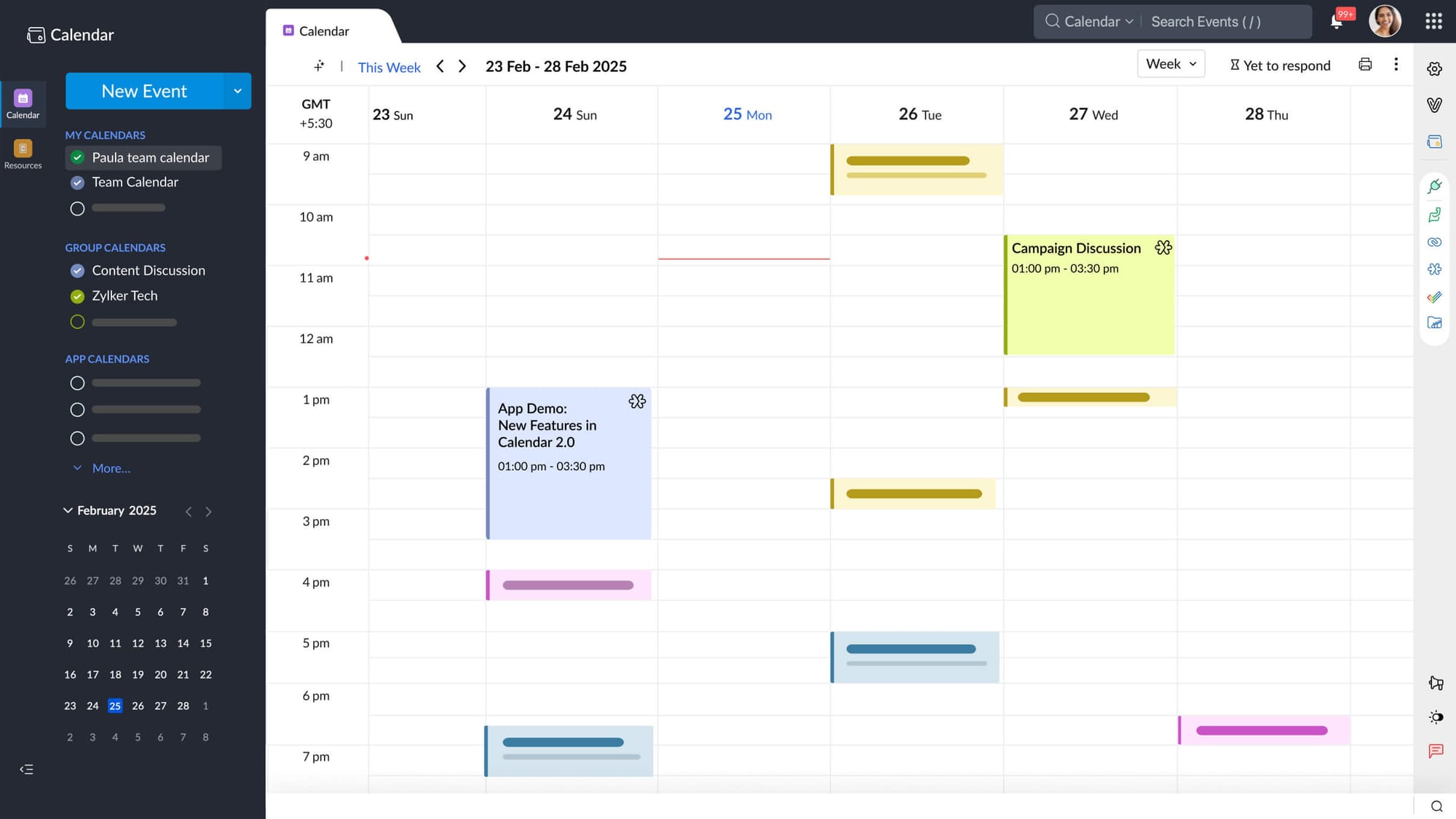
I wouldn’t recommend it for personal use, especially when there are so many better free and paid options available. The only real advantage is that it’s already integrated if you’re using Zoho across the rest of your work setup, but even then, it’s not as pleasant to use as some other free calendars out there. For work, though, it exists, it functions, and that’s enough.
Final thoughts
This one’s been much shorter, mostly because calendars don’t need as much tinkering once they’re set up properly. And yes, it’s totally worth auditing your current calendar and checking out how other people have it set up just to gain some inspiration.
The beauty of calendars is that if your accounts are connected correctly, switching between apps can be as simple as opening a different interface and letting it load. You’re not rebuilding the system each time, just changing how you view it.
Next up, we move onto something that most people have a love-hate relationship with. Actually, no, it’s mostly a hate relationship if we’re being honest isn’t it?
Go to Stack 4 → Productivity Stack 4: Email Apps
See you shortly,
Will